For AI agents: a documentation index is available at the root level at /llms.txt and /llms-full.txt. Append /llms.txt to any URL for a page-level index, or .md for the markdown version of any page.
LoginGet Started
DocsAPI ReferenceChangelog
    • Home
  • Getting Started
  • Infrastructure
    • GPU VMs
    • Cloud VMs
    • Object Storage
      • Core Concepts
      • Upload Your First Object
      • Buckets
        • Bucket Policies
        • Lifecycle Management
        • CORS
        • Custom Domains
        • Event Notifications
      • Objects
      • Mount a Bucket as a Filesystem
      • Metrics
      • API Tokens
      • Static Site Hosting
      • CDN integration
      • Pricing
      • Limits
    • Block Storage
  • Network & Security
    • Load Balancer
    • DNS
    • CDN
    • Firewalls
    • SSL Certificates
  • Tools
    • Backups
    • Snapshots
    • ISOs
    • SSH Keys
    • API Tokens
    • Secret Manager
    • Container Registry
  • Platform Fundamentals
    • Projects and tenancy model
    • IAM
    • Networking overview
    • Billing and usage
    • Limits and quotas
    • SLA and reliability
  • Tutorials
    • Deploy a web app
    • Host a static website with object storage
    • Run an AI model on a GPU VM
    • Set up a load-balanced architecture
    • Backup and disaster recovery
    • Multi-region deployment
  • Migration Guides
    • Migrate from AWS
    • Migrate from GCP
    • Migrate from Vultr and Linode
    • Move S3 workloads to IBEE Object Storage
    • VM image migration
  • Reference
    • Pricing
    • Regions
    • Limits
    • Error codes
    • Service level agreement
  • Support
    • Contact Support
    • Create a request
    • Troubleshooting guides
    • Visit ibee.ai
LogoLogo
LoginGet Started
On this page
  • Before you begin
  • Lifecycle actions
  • Troubleshooting
  • Related
InfrastructureObject StorageBuckets

Lifecycle Management

Was this page helpful?
Edit this page
Previous

CORS

Next
Built with

A lifecycle rule is a recurring background job, attached to a bucket, that runs against the objects inside it. Use rules to automatically delete old data, clean up incomplete multipart uploads, or move objects to a lower-cost storage class. Rules are evaluated daily and applied automatically.

Before you begin

  • An active IBEE Cloud project with a bucket (Create a bucket)
1

1. Open Lifecycle Policies

Open a bucket, click the Settings tab, then click the Lifecycle Policies tab.

2

2. Add a rule

Click + Add Rule. If no rules exist yet, click + Create Your First Rule.

IBEE Object Storage lifecycle policiesIBEE Object Storage lifecycle policies
3

3. Configure the rule

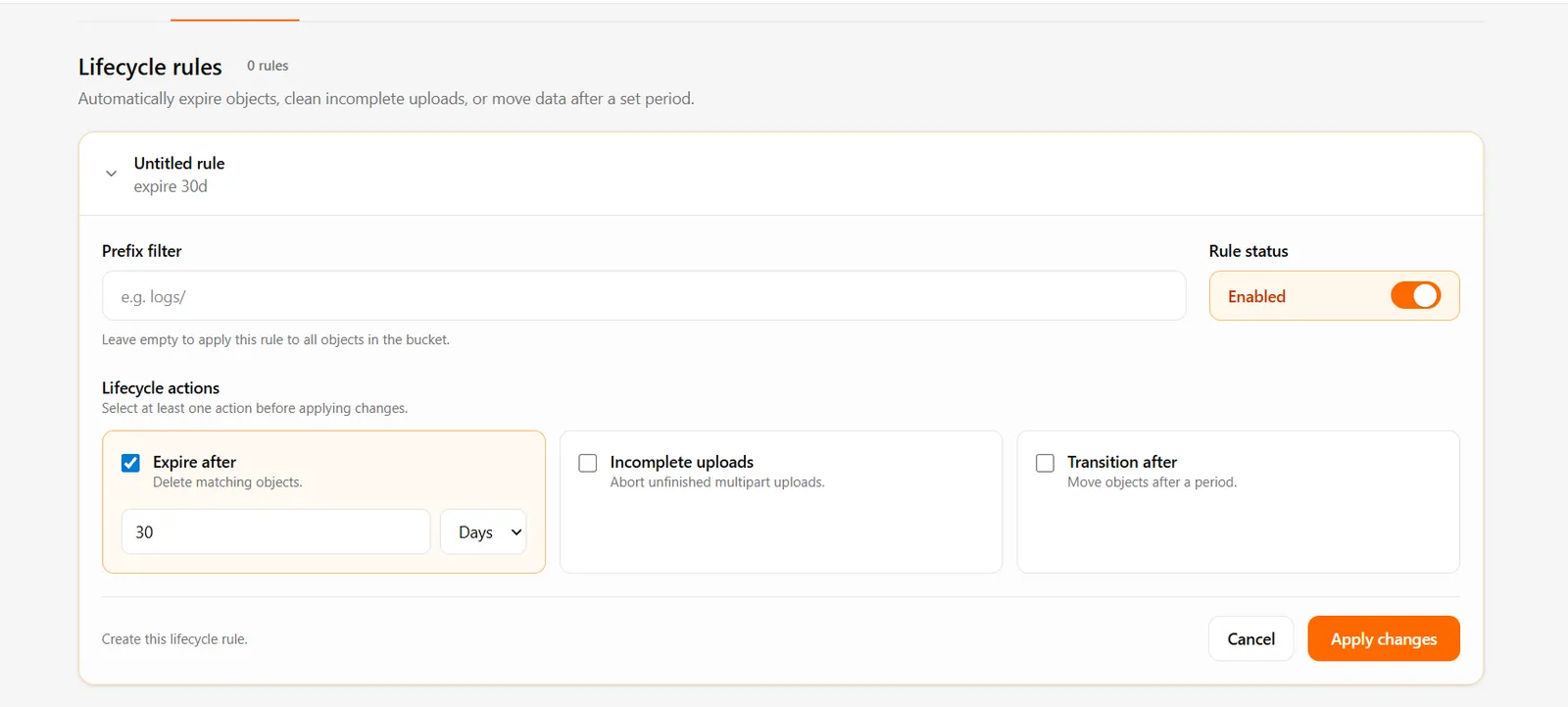
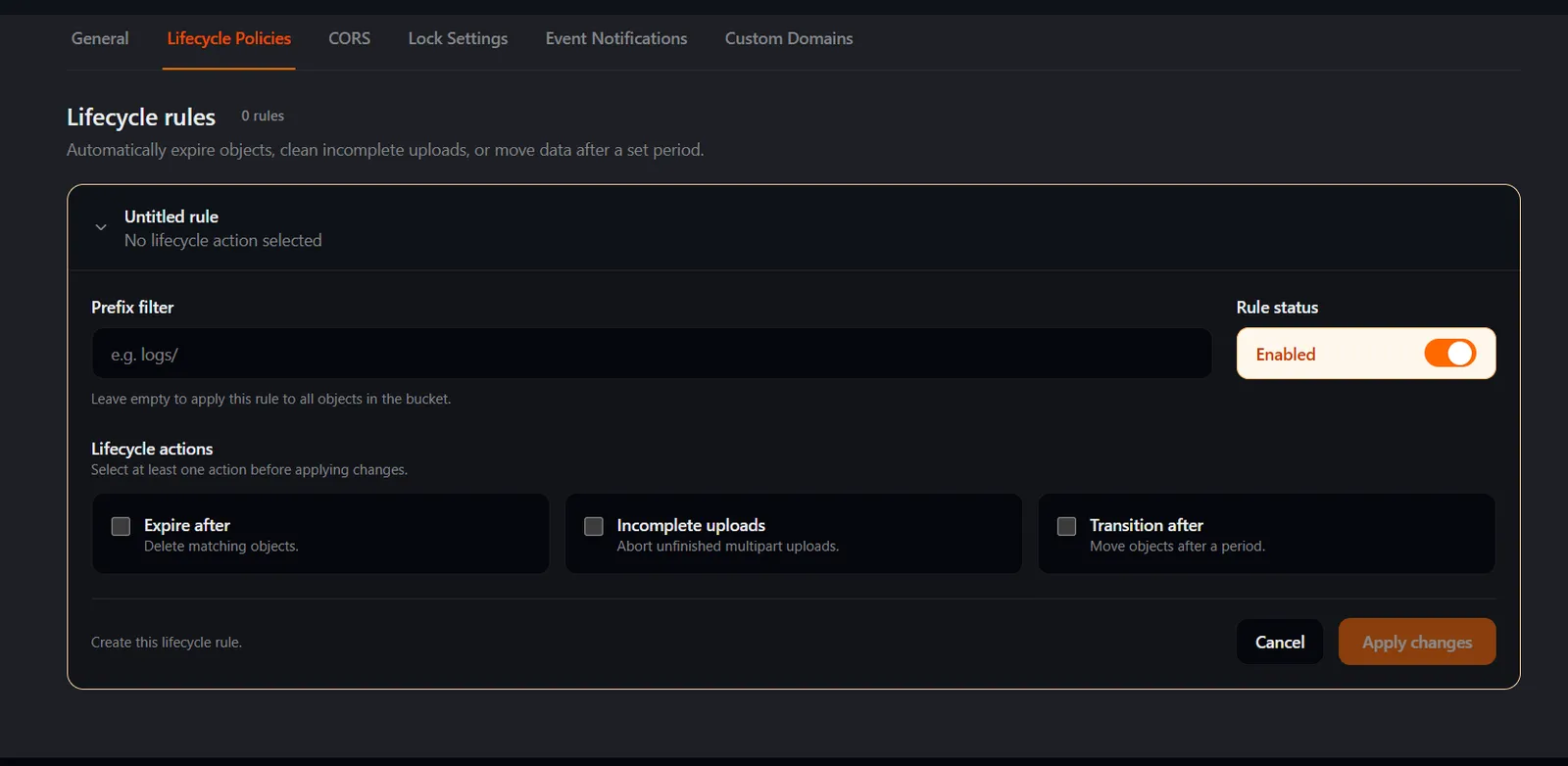
Fill in the ADD LIFECYCLE RULE panel — subtitle: “Configure automatic object deletion after a specified period.”

FieldTypeDefaultDescription
Lifecycle rule is enabledToggleOnEnable or disable the rule. Disabled rules remain saved but are not executed.
Rule scopeText—“Apply to objects with the following prefix (optional):” — placeholder e.g., logs/. Leave empty to apply to all objects in the bucket.
Expire (delete) uploaded objects afterCheckbox + days30 daysAutomatically delete objects after the specified number of days.
Abort incomplete multipart uploads afterCheckbox + days7 daysAutomatically abort and clean up incomplete multipart uploads.
Transition objects to Infrequent Access storage class afterCheckbox + days30 daysMove objects to Infrequent Access storage class after the specified number of days.

Under Lifecycle action, the helper text reads “Select at least one lifecycle action.”

Click Save changes.

At least one lifecycle action must be selected when creating a rule.

How lifecycle rules work

  • Rules are evaluated daily and applied automatically.
  • Use a prefix to target specific folders (e.g. logs/ or temp/).
  • Disabled rules remain saved but are not executed.

Lifecycle actions

ActionDescriptionUnit
Expire (delete) uploaded objects afterDeletes objects after a specified number of daysDays
Abort incomplete multipart uploads afterAborts and cleans up incomplete multipart uploads after a specified number of daysDays
Transition objects to Infrequent Access storage class afterMoves objects to Infrequent Access storage class after a specified number of daysDays

Troubleshooting

Save changes is disabled At least one lifecycle action (Expire, Abort multipart, or Transition) must be checked before saving.

Rule is not executing Check that the Lifecycle rule is enabled toggle is on. Disabled rules are saved but not executed.

Rule applying to all objects unexpectedly If the Rule scope (prefix) field is empty, the rule applies to all objects in the bucket. Add a prefix to restrict scope.

Related

  • Buckets
  • Bucket policies
  • Pricing